Use File - Close All to close all open editing windows.
To help you get started, we will provide a project that contains some images you can use. Follow these steps to import it into your workspace:
-
From the RAD menu, choose File - Import to start the wizard.
-
On the first wizard page, expand the General category and select Existing Projects into Workspace, then press Next.
-
On the next page, click the Select archive file button, then press the Browse button and navigate to {Lab Installation Directory/starters/lab06. If your computer has the standard lab setup:
c:\Users\username\webclass\starters\lab06Select lab06.zip and press Open followed by Finish.
You should see the Lab06EAR and Lab06Web projects in the Enterprise Explorer.
-
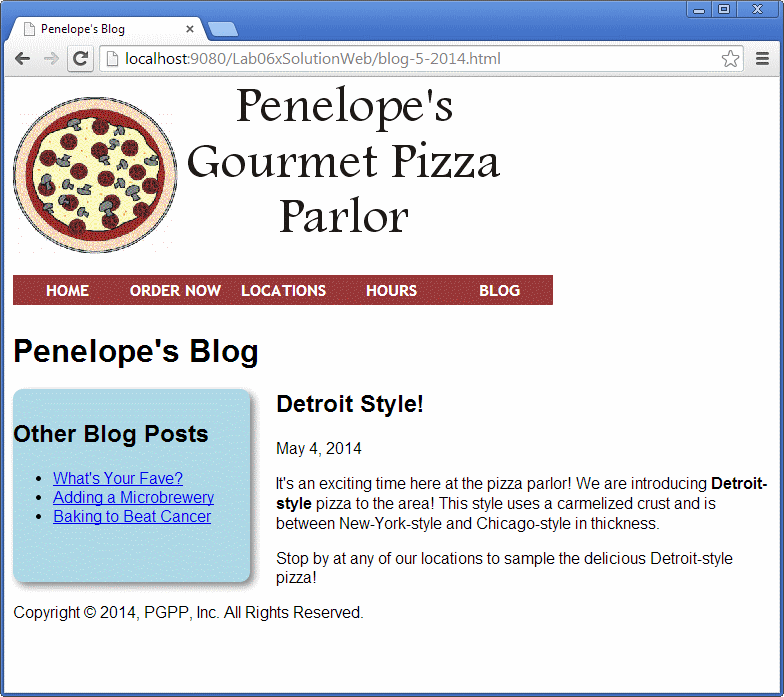
Expand the Lab06Web project's WebContent folder and note that it has versions of the pizza-parlor index.html, blog-5-2014.html, orderform.html and supporting image and CSS files.
In this part, your job is to add a navigation menu to the three HTML files. Your menu should look something like:
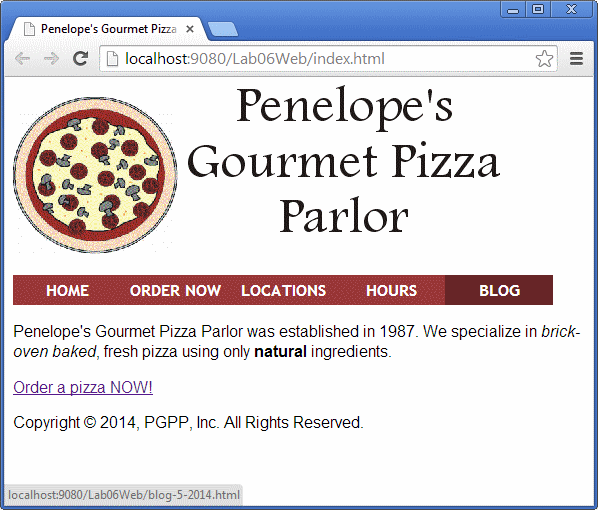
You can open the lab06fig1.gif file in the starters folder to see what the colors should look like.
Note how the last item, "BLOG" is a slightly darker color - though the screenshot doesn't show the mouse pointer, the user has hovered their mouse over that item.
Here are some hints:
- You can use an unordered list of hyperlinks to to define the menu items. You will need to use several CSS techniques to make the menu look and behave like the one in the screenshot.
- Include the menu within the nav element on each of the pages.
- Remember the pseudo-class selectors for the <a> tag!
- For the LOCATIONS and HOURS menu items, create new pages, copying content from your Lab01Web project. The new pages should also contain the navigation menu.