Start Eclipse running, if it's not already running.
Use File - Close All to close all existing
source windows, then
create a new Java Project named Lab02.
In the Package Explorer, right-click on the new project
and choose New - Package. Name the package
part1.
Right-click on the part1 package and create a new
class named Order -- the class should have
a main method.
A class can define state (referred to as fields in Java)
and behavior (methods). The wizard created a main()
method -- in this step, you will define fields.
In the new class, above the main method, but within
the block that defines the class, write the following
fields:
We recommend that you indent the field definitions using
the tab key to better show the class structure.
Save the file to compile it -- did you get an error?
The error is due to the fact that the Date class
is defined in a different package and needs to be
imported. The good news is that Eclipse can write
the import statement for you.
From the Eclipse menu, choose
Source - Organize Imports and choose java.util.Date.
Note that Eclipse added an import statement near the
top of the file. You should now be able to save with
no errors.
Now let's add a new method to the class. Above the
main method, but after the field definitions,
enter:
public String toString()
{
    return null;
}
This defines a method named toString that accepts
no arguments, but returns a String. Currently, it returns
the special null reference, but you will fix that
in a moment.
Fields are considered part of the class, and are global
to all methods. Let's prove that. Change the toString
method so it looks like:
public String toString()
{
    String s = "Order number: "   + orderNumber +
               " Order date: "    + orderDate +
               " List price: "    + listPrice +
               " Selling price: " + sellingPrice;
    return s;
}
This code uses the string concatenation operator '+' to
build a String object that contains labels and values for
most of the class's fields. The toString method
then returns that String.
Update the main method so that it creates an
Order object and calls toString:
public static void main(String[] args)
{
    Order o = new Order();
    String s = o.toString();
    System.out.println(s);
}
Note that the variable s is a local variable, which
means that it's defined in a method, not as part of the
class. And note that it's perfectly OK to use the same
local variable names in more than one method.
Run the program using the same technique you learned
in the previous lab. What output do you see? Do the
values for the fields make sense?
To see a better value for the date, change the field to:
private Date orderDate = new Date();
Save, then run again. Does it look better?
In the toString method, above the String
definition, add the line:
int orderNumber = 12;
This new local variable has the same name as a field.
Try running the program. Which value displays? Note how
the local variable takes precedence over the field.
In toString, modify the String initialization
for orderNumber to look like (leave the rest the same):
String s = "Order number: " + this.orderNumber +
Run the program again. What order number displays?
The this keyword explicitly tells Java to use a field.
It's actually implicitly there on all field references, but
you can omit it when there's no conflict with a local variable
name. Try putting this in front of all of the field names:
String s = "Order number: "   + this.orderNumber +
           " Order date: "    + this.orderDate +
           " List price: "    + this.listPrice +
           " Selling price: " + this.sellingPrice;
Part 2: Literal Values
In this part, you will learn about assigning literal values
to variables of different types.
Steps:
In the Lab02 project,
create a new package named part2 and within it,
a class named TestLiterals. The class should
have a main method.
In the main method, define local variables
according to the following table:
Variable name      Variable type
-------------      -------------

isManagement        boolean
middleInitial       char
teenYear            byte
lifeSpan            short
population          int
grainsOfSand        long
salary              float
nationalDebt        double
name                String
Write assignment statements to initialize each of the
variables to a literal value of your choice.
Use System.out.println to display each of the
variables.
Run your program and ensure that the results make sense.
Part 3: Type Conversions
In this part, you will experiment with type conversions.
Steps:
Create a new class named TestConversions
in the part3 package. Make sure that the
class has a main method.
Then run the program. Do you get the results you
expected? Java treats byte, short, int
and long types as signed -- the value 255 stored
in 8-bit, twos-complement notation is -1.
Change the above assignment to be 0xff instead
of 255 -- 0xff is hexadecimal notation for the
same value.
Add the following to main:
float f = 123;
System.out.println(f);
Save to compile. What is going on here? The "123" is
actually a literal for an integer, and the compiler automatically
promotes integers to floats.
Run the program and note that System.out.println formats
floats to always have at least one digit following the
decimal point.
Change the code so it looks like:
float f = 123f;
System.out.println(f);
Any difference when you run it? Now there's no type
promotion since the types on both side of the assignment
operator are the same.
Change the above code so it looks like:
float f = 123.0;
System.out.println(f);
Did you get a compilation error? The issue is that Java interprets
literal constants containing a decimal point as double, not
float -- and since in general, doubles are larger than
floats, the compiler generates an error.
You can fix the error by putting an 'f' character after the
".0" so the literal constant looks like 123.0f. That
forces the compiler to interpret the literal as a float
instead of a double.
When you save, you'll get an error -- "C" is literal for
a String object, not a char primitive. To fix the
error, change the double quotes to single quotes -- that
defines a char typed literal.
When you save, you'll get an error because 'true' is
not a legal literal constant for a boolean. The only possible
boolean literals are true and false: no quotes.
Fix the error before continuing.
What's wrong here? The problem is that Java interprets the 2
as a literal int and promotes firstChar to int.
Then the assignment operator complains because the right side
is "larger" than the left side (int cannot in general fit in char).
How do we fix this? But we must ask: is this a good idea in
the first place? It looks like we are trying to perform
arithmetic on characters, which is generally a bad idea. You
may have done such arithmetic in other languages that use
ASCII characters, but Java uses Unicode characters, Unicode
doesn't (in general) support character manipulation via
addition and subtraction.
But if you really want to do this, you could write
something like:
char secondChar = (char)(firstChar + 2);
This code uses parenthesis to guarantee that the addition
happens first (using int) and then we cast the sum back
to char.
Part 4: Primitive Wrapper Classes
In this part, you will experiment with converting
primitives to Strings and vice versa.
Steps:
Create a new class named TestWrappers in a package
named part4. The class should have a main
method.
Java provides primitive types such as int and double
so that you can perform arithmetic on values. However, in many
common scenarios, such as receiving user input, you will obtain
data as Strings. Before you can perform math, you will need
to convert Strings to the appropriate primitive.
To convert from String to a primitive, Java provides several
object classes in the java.lang package that have names
that are similar to a primitive (remember that Java is
case-sensitive and that class names usually start with
an upper-case first character):
primitive type      "Wrapper" class
--------------      ---------------

boolean             Boolean
byte                Byte
char                Character
double              Double
float               Float
int                 Integer
long                Long
short               Short
Open the JavaDoc and look up the class named Integer.
This class defines several useful methods -- we will examine
a couple here. Please examine the documentation for the following:
static int parseInt(String s)
static String toString(int i)
The first method accepts a String and returns an int,
while the second does the opposite. Both are defined as static,
which means that we don't need to create an Integer
object to call the method -- we will cover static in more
detail later in the course.
First, let's try converting an int to a String. Add the
following code to main:
int firstInt = 42;
String firstString = firstInt;
System.out.println(firstString.length());
When you save, you will get a compile error because a String
object reference is not compatible with an int.
Fix the code:
int firstInt = 42;
String firstString = Integer.toString(firstInt);
System.out.println(firstString);
As you can tell from the JavaDoc, the Integer.toString method
accepts an int and returns a String object reference
that contains the characters that correspond to the int's
digits.
Now let's go the other direction. Add the following
to main:
The Integer.parseInt method accepts a String, hopefully
formatted as an integer and returns the corresponding
int value, which can participate in math operations.
What happens when you run the program? The issue is that
"hello" is not formatted as a proper int, so
Integer.parseInt throws a NumberFormatException.
We will cover exceptions in more detail later in
the class.
Using the concepts you learned in this part, define a String
with "43.76". Then use the Double class's parseDouble
method to convert the String into a double. Then multiply the
double times two and display the result.
Part 5: Working with References
Java supports two basic types of variables: variables
that contain primitive values (e.g. int) and variables
that contain references to objects. We saw in the last part
how to convert String objects to/from primitives. In this
part, you will learn more about how references work.
Steps:
Create a new class named TestReferences
in the part5 package with a main
method.
Add the following to main:
int firstInt = 12;
int secondInt = 12;
boolean theSameInt = (firstInt == secondInt);
System.out.println ("Same integer: " + theSameInt);
This code creates two int variables and then
uses the equality operator '==' to compare them.
Run the program and note the output.
Add the following to main:
Date firstDate = new Date();
Click on Date, then right-click and choose
Source - Add Import to import the java.util.Date type.
This code creates a Date object that represents the current
time and date.
Add the following:
long time = firstDate.getTime();
Date secondDate = new Date(time);
This code retrieves a long
that contains the number of milliseconds since January 1, 1970,
00:00:00 GMT that the first Date represents.
We then create another Date object using that long so that
the two Data objects represent the exact same instant in time.
The equality operator returns a boolean that compares
the references. Run the program and note the output. Does
it make sense?
The issue is that the equality operator works a bit differently
than you might expect for references. References, as their
name implies, refer, or point to objects. When you
you compare references, you're comparing the
reference values, not the objects to which they reference.
And since we have two distinct objects on the heap, their
reference values are different, even though the objects
contain the same data.
Then run the program again. Now you are asking the
first Date object to compare its value against the
second object. Do the results make sense?
Part 6: Reinforcement
In this part, you will practice the techniques covered
in this lab to reinforce the concepts. We will supply you
with a Java class that contains many syntax and conversion
errors. Your job is to get a clean compile and run.
Steps:
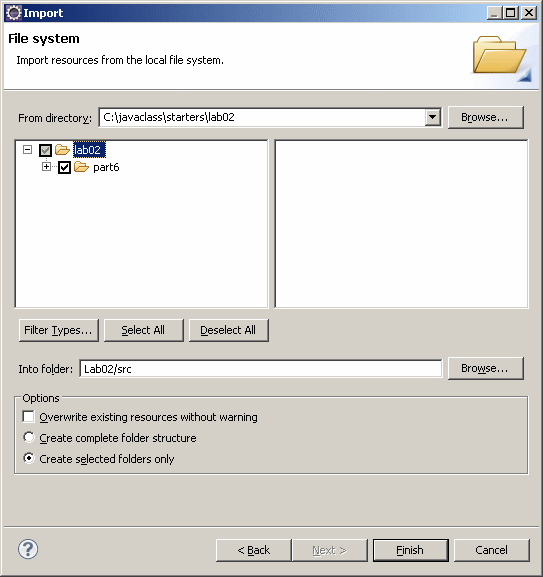
To import the error-ridden class, follow these steps:
Right-click on the Lab02 project's src
folder and
choose Import.
On the first wizard page, choose General - File system,
then press Next.
On the next wizard page, for the From directory,
browse to {Lab Installation Directory}/starters/lab02,
then press OK.
Expand the lab02 entry and select and highlight
the part6 entry. The wizard should look like:
Press Finish to import the class. You will note
that it has several compilation errors.
After fixing all of the compilation errors, try
to run the program and fix and issues that come up
when you attempt to run.
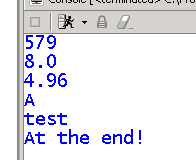
When you are successful, the output should look something
like: