In this lab, you will work with Java flow-control constructs
such as if statements and while loops
Objectives:
To learn Java decision-making statements
To learn Java flow-control statements
Part 0: Getting Started with If
Steps:
Start Eclipse if it's not running.
Use File - Close All to close all existing
source windows, then
create a new Java Project named Lab04.
Right-click on the new project and choose New - Class
to create a class named SimpleIf in the part0
package. The new class should have a main method.
The goal of this program is to retrieve a random number that
we will interpret as an employee's salary. Then, based on the
salary, we will classify the employee. Follow these steps:
Inside main, create a random-number generator object:
Random rand = new Random();
Use Source - Organize Imports to import the Random type
from the java.util package.
Retrieve a random number that's less than 200,000 for the
employee's salary, then print it out:
int salary = rand.nextInt(200000);
System.out.println("Salary: " + salary);
Write an if-else if-else to classify the employee. If
the salary is greater than or equal to 100,000, the employee is "A highly
paid executive". If the salary is greater than or equal to 50,000 (but
less than 100,000), the employee is "A middle manager". If
the salary is less than 50,000, the employee is "An entry level
employee".
Run the program by right-clicking on SimpleIf.java in
the Package Explorer and choosing Run As - Java Application.
What kind of employee did you get? Run it a few times to see
if the logic works for different random salaries.
Part 1: Making Decisions
In this part, you will write a program that makes decisions
based on user input. You can use Java's if-else if -else
statement.
Steps:
Create a new class named DecisionsDecisions in
a package named part1. The new class should
have a main method.
The goal of this program is to:
Prompt the user to enter a line of text
Retrieve the input string
If the string is "exit", print "Goodbye"
If the string is your name, print "Hello, " and your name
If the string is anything else, print "Who are you?"
The next few steps give you some hints.
To prompt the user, you can use System.out.print,
which is similar to System.out.println, but doesn't
print a new line:
System.out.print("Enter your name: ");
To retrieve the input line, you can use code like:
Scanner scanner = new Scanner(System.in);
String line = scanner.nextLine();
You can use Source - Organize Imports so that Eclipse
writes an import statement for the java.util.Scanner
class.
To compare the characters in a String with a literal,
you can use the equals method. Here's an example:
boolean exit = line.equals("exit");
boolean name = line.equals("Sam");
You can use the return from the equals method
in an if - else if - else statement:
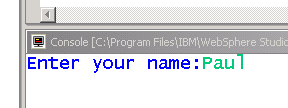
To test it, click the mouse in the Console view
immediately following your input prompt. You then should be
able to enter the input string and press Enter:
Part 2: Looping
In this part, you will work with Java loops.
Steps:
Create a new class named MeasureDistribution in
the part2 package. The new class should have
a main method.
The goal of this program is to:
Create a pseudo random-number generator object
Initialize three int variables : one to hold a count of
positive numbers, one to hold a count of negative numbers
and one to hold a count of zeros
Define a block that loops 100,000 times
Each time through the loop, generate a random integer.
Based on the integer's value, increment one of the counter
variables
After exiting the loop's block, print the counter variables
The next few steps give some hints.
Look in the course notes and the Javadoc for how to create and use
the java.util.Random class
You can use a for loop to perform the looping.
Each time through the loop, retrieve a random integer.
You can use an if - else if - else statement
to determine whether the random integer is positive,
negative or zero.
Run your program and examine the results. Note that you
may not get exactly the same number of negative and
positive numbers -- that's normal for a pseudo random-number
generator. Also note that the chances of getting any zeros
are slim, so don't be surprised if you don't see any, even
if you run the program several times.
Part 3: The Switch-Case Statement
In this part, you will get a chance to work with Java's
switch-case statement.
Steps:
Create a new class named SysInfo in the
part3 package. The new class should have
a main method.
The goal of this program is to:
Set up an infinite loop
Inside the loop, display a '>' prompt character and then
retrieve a single keystroke from the user
If the key is 'q' or 'Q', break out of the loop
and exit the program
If the key is 'u' or 'U', display the current
user's name
If the key is 'o' or 'O', display the current
operating system's name
If the key is 'h' or 'H', display the Java
installation directory
The next few steps give you some hints.
Create a java.util.Scanner connected to System.in as you did
in an earlier part of lab.
See the course notes for an example of an infinite
while loop.
To display the prompt character, you can use System.out.print,
which is similar to System.out.println, but doesn't print
a new line.
To retrieve a single keystroke from the user, you can use
the Scanner:
char c = scanner.nextLine().charAt(0);
Use a switch-case statement to make a decision
based on the input character.
To retrieve the Java home directory and the OS and User names,
you can call the System.getProperty method:
String s = System.getProperty("java.home");
Use
the JavaDoc to read about the System class for
details. Hint: search the System class's JavaDoc Web page
for "java.home".
To exit the program, you can use the System.exit(0)
method. See the course notes for an example.
Run and test your program.
Part 4: Reinforcement
In this part, you will practice the techniques covered
in this lab to reinforce the concepts.
Steps:
Create a new class named CountPunctuation
in the part4 package. The class should
have a main method.
The goal of this lab is to write a program that
analyzes lines of text entered by the user.
Here are the specifications:
The program should run in an infinite loop,
prompting the user, then
reading a line of text each
time through the loop
If the user enters "exit" or "EXIT", the
program should terminate
The program should loop through the characters in the input line,
counting space characters, punctuation and
"normal" characters. Punctuation is defined
as a comma, colon, semicolon, or a period.
After analyzing the string, the program should
display the count of spaces, punctuation characters
and normal characters
The next few steps have some hints.
You will need to nest a loop within a loop -- the outer
loop will be infinite and the inner will loop through
the characters in the inputted String.
You can retrieve individual characters from a String
by calling the charAt method:
int i = 0;
char c = line.charAt(i);
If you do this in a loop, varying the index each time,
you can retrieve all of the characters in the string.
You can retrieve the number of characters in a String
by calling the length method -- you can use
this length to terminate a loop.
You can use a switch-case statement to determine
which category a given character falls into.