In this lab, you will write a Java application that lets the user enter checks into a personal finance system. Your application will store the data in a simple database and will verify that the account has sufficient balance before posting the transaction.
You will handle two types of exceptions: SQL exceptions from the database and application-defined exceptions.
Create a new Java project named Lab07.
Right-click on the Lab07 project and choose New - Class to create a class named ConvertTemperature in the part0 package. The new class should have a main method.
This program's job is to accept data from the user that contain the current temperature. When the user enters this data, it will come into your program as a String; your program will convert to the appropriate Java type, double. During conversion, Java will throw an exception if the input data is not correctly formatted, for example if the user enters "abc" for the temperature rather than a numeric string such as "33". Your program will handle these exceptions.
Complete the main method as follows:
Create a java.util.Scanner object connected to System.in:
Scanner scanner = new Scanner(System.in);
Prompt the user for the temperature, and retrieve that String:
System.out.print("Enter the current temperature (F): ");
String sTemp = scanner.nextLine();
Use the java.lang.Double class to attempt to convert the "temperature" String into a double:
double fahrenheit = Double.parseDouble(sTemp);
Do a simple calculation and display the results:
double celsius = (fahrenheit - 32) * 5 / 9;
System.out.printf("The temperature in Celsius is %2.2f\n",
celsius);
Highlight all of the lines in main and choose Source - Surround With - Try/catch block so that Eclipse writes simple exception handling for you.
Then modify the Eclipse-generated code in the catch block so that it looks like:
System.out.println("Bad input string");
Right-click on ConvertTemperature.java in the Package Explorer and choose Run As - Java Application.
In the Console, enter a Fahrenheit temperature and press Enter. Do you see the correct Celsius value?
Try running the program again, this time entering abc for the Fahrenheit temperature. What happens? Why?
You must configure the database for your program. We will use the free, open-source HypersonicSQL database to hold the check information. Follow these steps to configure the database:
Open a command-prompt window (choose Start - Run and type cmd), then change to the {Lab Installation Directory}/lib directory. If your computer has the standard lab setup under Windows XP:
c:
cd \javaclass\lib
If your computer has the standard lab setup on Windows Vista, Windows 7 or later:
c:
cd \Users\username\javaclass\lib
Substitute your actual user name, e.g. libtrain1 for the "username" above.
Start the HypersonicSQL server running:
java -cp hsqldb.jar org.hsqldb.Server -database mydb
The server will start and display a sign-on message. If prompted by Windows, allow access for the server.
Note: Be sure to leave this command-prompt running until you are finished with the lab.
Open another command-prompt window and change to same directory as you did in the last step.
Start the HypersonicSQL administrator's GUI:
java -cp hsqldb.jar org.hsqldb.util.DatabaseManager
In the GUI, change the Type to HSQL Database Engine Server, then press OK. Warning: Be sure to choose the Server option!
In the GUI, in the command area between the Clear and Execute buttons, create the database table, by entering the following command all on one line:
CREATE TABLE checks (checknum INTEGER PRIMARY KEY,
accountnum INTEGER,amount DOUBLE)
Then press the Execute button.
To test the new table, press the CLEAR button, then enter:
SELECT * from checks
Press the Execute button -- you should see an empty table with the proper column names.
You can close the GUI before continuing, but be sure to leave the server running.
Next, you will import a class that contains the business logic for the program and communicates with the database. Follow these steps:
Right-click on the new project's src folder and choose Import.
On the first wizard page, choose General - File system, then press Next.
For the From directory, browse to the {Lab Installation Directory}/starters/lab07 folder, then press OK.
Select the checks folder (see Figure 1) and then press Finish.
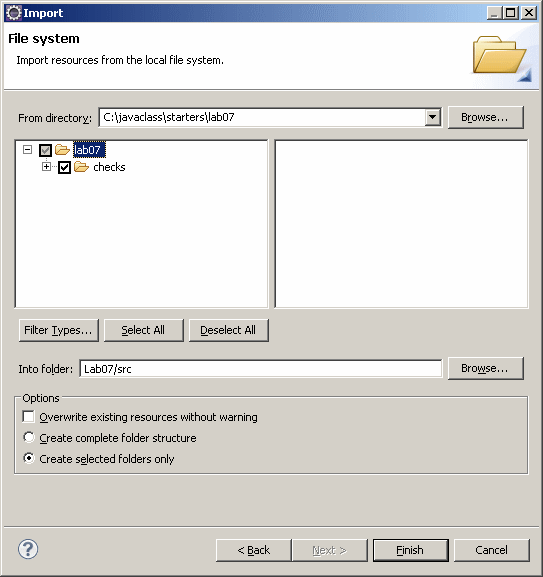
Edit the checks/CheckingAccount.java file and examine it and see if you can make any sense of the JDBC code that talks to the database.
Find the writeCheck method and note what exceptions it throws. Also note that it's a Singleton class, which means that it allows only a single instance (you cannot instantiate objects using the new operator, since the only constructor is private).
The CheckingAccount class uses the JDBC API to communicate with the database. JDBC requires that you use a JDBC driver library -- for this program, we need to ensure that the JDBC driver is accessible to our program. Follow these steps:
In the Project Explorer, right-click on the Lab07 project and choose Properties.
In the Properties Editor, select Java Build Path, then click the Libraries tab.
Press the Add External JARs... button, then navigate to the ${Lab Installation Directory}lib directory and select hsqldb.jar. This archive contains the JDBC driver for HSQLDB. Press Open followed by OK.
In this part, you will write a program that writes a check and catch exceptions.
Create a new class named TestChecking in the test package. The new class should have a main method. Add code to main so that it retrieves a check number and amount from the user and calls the writeCheck method:
Create a java.util.Scanner object connected to System.in.
Use the CheckingAccount class's two-argument constructor to create a CheckingAccount object with an account number of 12 and an initial balance of 100:
CheckingAccount acct = ........
Write an infinite while loop.
Inside the loop, ask the user if they want to continue and retrieve a keystroke. If the user enters 'Y', break out of the loop:
System.out.print("Quit? ('Y' or 'N'):");
if (scanner.nextLine().charAt(0) == 'Y')
break;
In the loop, ABOVE the keystroke-checking code, prompt the user, then call the scanner's nextLine method to retrieve two Strings -- one for the check number, one for the amount. For example, to prompt the user and retrieve a String for the check number, use code like:
System.out.print("Enter check number: ");
String checkNumberStr = scanner.nextLine();
Use Integer.parseInt to convert the check-number String to an int and Double.parseDouble to convert the amount String to a double. For example, to convert the checkNumberStr to an integer, use code like:
int checkNumber = Integer.parseInt(checkNumberStr);
Hint: Read the JavaDocs for the equivalent method for the java.lang.Double class to convert the amount string into a double.
Call the writeCheck method on the acct reference, passing the checkNumber and amount integer and double.
Save the file to compile. You should have two compilation errors about Unhandled exceptions for ClassNotFoundException and SQLException You will fix those in a moment, but if you have any other compilation errors, fix them before continuing.
Examine the writeCheck method and note which exceptions it throws -- do the compilation errors make sense?
There are two basic ways to handle exceptions -- you can write a try-catch block or pass the exceptions back to whomever called you. We'll start with the latter approach.
Modify the main method, adding the clause throws Exception. Since Exception is the superclass of all catchable exceptions, this should fix both compilation errors.
Try running the program: pass 123 for the check number and 5.5 for the amount. The program should work fine. Don't quit yet.
When prompted, enter the same check number and amount. What happens? Quit the program.
The problem is that the database is enforcing the primary-key constraint so you cannot insert two checks with the same check number.
Since your main method passed the exception back to its caller, the exception was handled by the Java Virtual Machine, which prints the lovely stack trace. While the stack trace is useful to help a developer diagnose the problem, it's probably not a good idea to display that type of information to the user -- programs that react like this to errors do not inspire user confidence.
Let's make this a bit more user friendly by handling the exception in our program. The good news is that Eclipse can help you write try-catch blocks. Follow this procedure:
Remove the throws Exception clause from main.
Highlight the line that calls writeCheck, then right-click on the highlighted area and choose Source - Surround with try/catch block.
Note that Eclipse determined which exceptions the highlighted line might throw and wrote a catch block for each. The Eclipse-generated code is not that user-friendly, so delete it in both catch blocks and replace it with:
System.out.println(e.getMessage());
This code displays the exception object's message string, which should be a human-readable description of the exception.
Try running the program again, using the same check number and amount. You should see a message indicating a "violation of unique index...". This message is a little better than the stack trace, but you will improve it in a later part of lab. Don't quit yet.
When prompted, enter "abc" for the check number and any amount. What happened and why? Quit the program.
The problem is that the conversion from String to int and double can throw the NumberFormatException. Follow this procedure to improve the program:
Highlight all of the lines from the Integer.parseInt call down through the end of the last catch block for SQLException.
Right-click on the highlighted lines and choose Source - Surround with try/catch block.
In the catch block for NumberFormatException, replace the generated code with:
System.out.println("Invalid numeric data entered.");
Note that you now have a try-catch nested within another try-catch -- that's perfectly OK. The idea here is that we only want to attempt to write the check if both input Strings contain properly formatted numbers.
Try running the program again with "abc" for the check number and any amount. Does that look better? Quit the program.
Stop the database server by pressing Ctrl+C on its command window, then try running your program with 156 for the check number and 5.5 for the amount. What happens? Does your exception handling make sense?
Quit the program and restart the database server before continuing.
In this part, you will write exception class that encapsulate information about exceptional conditions that this program may encounter.
Create a class named DuplicateCheckNumberException in the checks package by following these steps:
Right-click on the checks package and choose New - Class.
In the New Class wizard's first page, enter DuplicateCheckNumberException for the name. For the superclass, press the Browse... button and start typing Exce into the entry field -- note how the wizard narrows down the superclass name based on your typing. Select Exception from the list and press OK.
This new class doesn't need a main method. Press Finish to create the class.
Edit the new class and write a zero-argument constructor that invokes the superclass:
super ( "Check numbers must be unique" );
This defines the message string for the new exception class.
Repeat the above step to create an exception class named InsufficientFundsException. Use an appropriate message string.
Edit CheckingAccount.java and update it to use the new exception classes. Perform the following steps:
Add the DuplicateCheckNumberException and InsufficientFundsException to the list of exceptions thrown by the writeCheck method.
Find the closing brace of the if statement that checks for a non-zero balance in the writeCheck method and add an else clause:
else
{
throw new InsufficientFundsException();
}
Find the catch block in the writeCheck method that catches the SQLException and modify it so it looks like:
catch ( SQLException e )
{
if ( e.getErrorCode() == -104 )
throw new DuplicateCheckNumberException();
throw e;
}
Save CheckingAccount.java and note that there are now errors in TestChecking.java due to the new exception types.
Edit TestChecking.java and write additional catch blocks for the new exceptions. In the catch blocks, you can display the message string in a similar fashion as before.
Save, then run the program.
To test, write a check using 123 for the check number and 5.5 for the amount -- you should see the "unique check number" message. Don't quit yet.
Try writing another check with 444 for the check number and 500 for the amount -- you should see your "insufficient funds" message. (The initial balance of the account is $100 -- see the CheckingAccount class to see how this works.)
You can quit the program when you are finished.
In this part, you will practice the techniques covered in this lab to reinforce the concepts.
Create a new class named EchoFile in the io package. The class should have a main method.
Read the JavaDoc about the java.io.FileReader class. Note that the class defines a constructor that accepts a file name. Note also that it defines a read method that returns a character from the file. Please make special note of the exceptions thrown by the constructor and the read method.
In main, write code to open the CheckingAccount.java file using a FileReader. The pathname should be src/checks/CheckingAccount.java.
Use a try-catch block to handle any exceptions.
Within the try block from the previous step, write a loop that reads characters from the file until the read method returns -1. Use System.out.print to print each character to the console.
After the loop finishes, call the close method to close the FileReader.
Use a try-catch block to handle any exceptions.
Note: The read method returns an int so you can tell end-of-file by looking for -1. However, before displaying, you will need to cast the int to char.
Save, run and test. You should see the text of the file displayed in the console.
Try changing the pathname to xxxx and running your program. Does your exception handling kick in?